Book Creator is awesome! I watched the Getting Started With Book Creator for Chrome by Dr. Monica Burns from July 2018.
The product is very easy to use. I included a link above to the book I created during the 45 minute video. I love the recording feature. It allowed me to add a recording of my voice (which I deleted) and also tried out the speech to text feature. Students will be so excited about this.
My 1st grade enrichment group just started a state research project. It s the same group who created the green screen video. This product will be perfect for them. They can each create a page using the joining code and then I can combine the individual pages and easily share the book with their classes and families - electronically and a paper copy.
The speech to text feature is perfect for first grade. They can speak their facts on the page. They can read the notes they take. This will put the focus on the information and not so focused on the correct spelling. Some in the group have challenges with their handwriting. Using the product I can find a balance between them learning keyboard skills and creating a project they are proud of. Some were very frustrated during the last research project with the writing part. Having them type a fact and speak a fact provides the perfect balance. Drawing will provide that personalization students crave.
I can see other uses too - reader's response after I read a story to a class. A quick way to record and assess.
I am currently reading Magic Tree House books to 1st and 2nd grades classes. This would fit nicely as a summary when we finish the book.
There is so much under Google! I listened to Hipster Google - 21 Things you probably never heard of. I also watched two videos from about self-grading quizzes and sharing quizzes from Teachers Tech.
One of the items I really liked was Google Spell. I thought it would be great for a filler activity during my library classes. Well, I went to use it and it looks like it is no longer available :(. I'll have to look for a similar activity..
One tool I am anxious to try is Google Cast. My students will be so excited to display their work on the Smart Board. They recently wrote Haikus and it would have been great to have each student display their poem on the screen in front of the class. I am definitely going to have my students try Google Cast.
Tour builder was another interesting tool. I am doing a state research project with my 1st grade enrichment group. I can have them map out a tour of all the state capitals, and they can each put a fact about their capital.
I was amazed by the Google Translate tool and the ability to translate signs using the camera. I was sharing with someone at work who said they used it in Italy recently and it was a life saver. Hopefully someday I will find myself in a foreign country on vacation and can use it.
Toontastic looked fun, but I don't have access to a class set of iPads.
I just looked for Google Story Builder and discovered that app has also been retired. I thought it would have been a good activity for 3rd and 4th graders to use with fairy tales and folk tale characters.
Wow, there is a lot available in this lesson - so many resources!
I watched the Powtoon video on the difference between primary and secondary sources. I will use this as an introductory lesson with my 6th graders. They are visiting Washington D.C. this June. I started planning a lesson using Google Docs on the Lincoln Memorial for them to do prior to their visit.
I found a photo collection of design proposals for the memorial in DocsTeach. Student will compare and contrast to what is looks like today.
I'm going to pair these with a book on the history and construction of the memorial. I also found other photos that show various renderings of the Lincoln statue. Here is one.
I also reviewed the Kid Citizen and Eagle Eye links. I can use these with my younger students. I watched the Eagle Eye video on Flags. At first I was unsure about it, but by the end I saw that it came back around and did a good job tying the sources together and illustrating to viewers what to look for and types of questions to ask about primary sources.
I registered for DocsTeach and found a great lesson on Rosa Parks arrest record, along with sources about other women who also refused to give up their seats prior to Rosa Parks. In the lesson there is a version of the arrest record with Rosa's name redacted. I'm going to experiment with it on my library computers so it it displayed for each student and they can't click to show the entire record. The objective of the lesson is to have the students figure out who it is.
Working on Cool Tools on another snowy day in Rochester. I saw a meme that there are 31 days until Spring - I hope they go by quickly! I completed the exercise in Paige's article and marked on the framework what I am Doing, what I am Close on and those that I need to Improve.
For Doing - I have the most under engage across all domains, with the most being under Think.
For Improve - There are quite a few marks under create and share. The most being under the boxes create/include, grow/include, share/curate, and grow/curate.
For Close - I didn't have as many marked close. Grow/Inquire was the most marked category.
This exercise indicated to me that I need to provide my students with opportunities to research and engage in discussions about different perspectives. It brings to mind a recent lesson. I was reviewing with 4th and 5th graders Me on the Map skills - continent, country, state, city...
As soon as they saw the map of North America with the US, Canada, and Mexico some students mentioned the wall and opinions started flying. Some weren't even sure what the wall was. It led to a lesson about what a border was. Another lesson playing a presidential trivia game last week on Kahoot! led to lots of students sharing what they thought was the job of the president.
These recent classes are perfect examples of Create/Inquire #2 - Devising and implementing a plan to fill knowledge gaps.
Looking through the Tech Tools, I have used some - Adobe Spark and Do Ink. Story Board that and Powtoon look doable for my students with available resources. Both these tools work with Share/Inquire #4 and Share/Engage #2
Other thoughts on the Standards - I use an online planning tool - Planbook. I haven't seen them as an option in that tool. On my follow-up list.
Well, weather like today gives me a good opportunity to catch up on PD :)
The first time I participated in Cool Tools I did a video on Animoto. It was still in my account and it was only 30 seconds. Brought back memories - it was of my son during his high school swim meet.
There are a lot of resources listed on Thing 6. I explored many of them. Powtoons looks interesting, as well as the Time Line tool on Read Write Think. The time line tool in Google Slides looked a little complicated for elementary.
I spent the most time on Adobe Sparks. I made two videos. Very easy to learn and the free version had enough options to create a nice video. I'm hoping that my district has a subscription or its included with our Google accounts. We have a book of the month in our K-6 building and it would be a great project for the students to retell the story using Sparks, adding their connection to the story.
Here is the first video I made - Annie loves the snow much more that I do!
Here is the second video. My son has traded swimming for biking! Tried embedding it - hope it works!
So many great resources here! I fell down a rabbit hole though watching the videos on recreating Twinkies and Cheetos :). Brought back memories of trying to recreate graham crackers, cheese crackers, and other foods for my kids when they were diagnosed with Celiac disease. Some successful and some not so much!
The link to makertubs and the challenges David Romano has for his students look very doable. Loved the reference to the four C's - Communication, Collabortaion, Critical Thinking, and Creativity. I am going to try and incorporate some of his challenges or modify them for my 30 minute classes. Often when I do makerspace I will group students. Que groaning, sighing, and eye rolling. It is so wonderful to see most of that all go away as they start to work together with minimal referring.
I have dabbled in makerspaces in my K-6 library. I have borrowed the set of Little Bits owned by the district and just purchased my own set with book fair profits. It fosters teamwork and collaboration. Kids loved it! It worked best with grades 3 and up. My kit should arrive the week we return from break and I'm looking forward to using it. In prior classes I instructed the students to use the diagrams in the kit to assemble a wheeled vehicle. The teams were so excited to complete the project. This year I am going to give a short lesson on electricity prior to them using the kit, maybe using BrainPOP. I think it will help those that haven't grasped the basics on electrical currents and help them be more engaged. Applying what they know to the real world - go makerspace!
I also use a 3D printer in my library when I have it on loan from the district. My last unit with first graders involved research and a green screen video on coral reef animals. We closed out the unit by printing a sea horse cookie cutter for each of the students. I struggle though because other than watching it, the students aren't actively involved in creating the objects. I tried Tinkercad last year, but 3D drawing has a long learning curve for students (and teachers!) My goal this year is to print something I have drawn on Tinkercad. Prior attempts have not been successful....
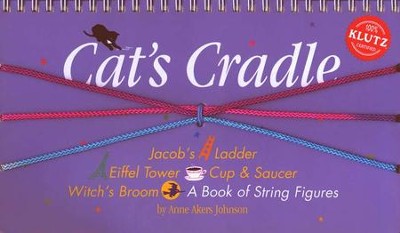
I learned that makerspace doesn't have to be fancy, expensive, or complicated. A skein of yarn and a book about cat's cradle string games will engage students. I modeled how to tie a knot and make a loop of yarn, and then make "witches broom." Just tying a know I found out was a new experience for some kids.
Most of the students hadn't heard of Cats Cradle, except a few who had learned about it from an aunt or grandma. Students were motivated to learn, and those that either knew already or picked it up quickly taught others. Some are regularly coming in the library asking for another piece of yarn, so I keep a supply ready and the book on a table!
I am very fortunate that I don't have to justify makerspace in my building/district. My admin and RCSD is very supportive - with staff and funding. My principal and some teachers came into the library when the students were doing cats cradle and they joined in with the kids. Perfect way to connect. I did the lesson the week before Thanksgiving break. I encouraged the students to share their new skill with their families during the holiday break. Makerspace provides and opportunity for critical thinking, creativity, and probably most importantly collaboration. I want my students to leave elementary school knowing that libraries are a place for life long learning, and makerspace is a motivating and fun way for them to experience libraries and all they can offer.
So much fun with green screen! I made this video with my group of 7 first graders that I have a few times per week for enrichment. We read Magic Tree House; Dolphins at Daybreak and then did research on coral reef animals. I had a group research sea stars and a group research sea horses. As a final project each student colored their animal, chose a favorite fact to read and then we practiced, practiced, and did more practicing! I have a new appreciation for our music teachers and any classroom teacher that has their class perform :)
I first learned about green screen at a tech camp this summer. My friend and I made a short video of Mr. Bill, his dog Spot, and Mr. Hand - people of a certain age will recognize these SNL characters. This explains Mr. Hand in the video above :)
The PD presenters were very generous - we all left with a sheet pizza box painted lime green. Well, it sat in my library all fall until I saw this topic in cool tools and thought it would be a great final project for this group. I just wish I would have read all the resources on Cool Tools before I started and not after! But reading them this evening has proven to be beneficial because I can reflect on what went well, and what I will change for the next project.
Challenges
I had students color cutouts of their animals and forgot to tell them not to use green, or even yellow that is close to green. One student chose to redo his, and the other student loved that the inside was invisible and used it anyway
Not all parents gave permission to have their children's faces on a public video, so I modified the project to only include their voices.
I didn't anticipate how many practices it would take for students to successfully read their fact, move their animal, and wait quietly while others performed. Also, it took me many attempts to find a location for the green screen, the iPad, and the students that worked well for me to film it without having the carpeting or the library sneaking into the picture because I moved the iPad.
I needed assistants to hold the cue cards for students to read. Next time I will have them memorize their lines.
Green pipe cleaners worked perfectly for the students to hold the animals - the goal was to have it look like the animals were swimming.
Laminating the animals and putting them on card stock made it much easier for the students to manage them, and helped them remain intact during all the practices.
I think I will try book reviews with my older students for my next project. I loved the idea of putting the student's pictures on book covers!
Saturday, December 1, 2018
Hi, I'm Susan Reuter and I'm a librarian at School 52, a K-6 school in the Rochester City School District. Glad to be back on my blog after successfully transferring it to a new email address - which took numerous attempts :) I updated the theme and read through some of my old posts. I took the class three years ago and learned about many new technologies that I have used with my students over the years. I'm looking forward to learning about new technologies and tools for my students. We are now a Google Suite school and I have access to a few iPads that I can borrow from a classroom.
Wow, I can't believe I have been in this PD for three years already! I have loved it and learned so much. Personally, I have learned how to use an iPad and blog. Two things I didn't know how to do or was comfortable doing at the beginning. With my students I have used blogging, Google Lit Trips, Popplet, picture formatting apps, and this year, really tied the learning to my everyday job with Chrome and Google apps. Lib Guides have been very useful for me personally using the IFC and for my 6th grade students.
Some of the biggest challenges were so many apps available on the iPad or tablets that I couldn't really use with my students, because I don't have tablets available to me in the library. Hopefully in the future I can use them. Also, the cost or student privacy/security would prevent me from using them sometimes, especially with the younger ones.
I liked the Easy Bib Add-on for Google Docs and the Research tool. I plan to put that in my program next year. Next year I am part of a collegial circle writing a research unit and this tool will be an integral part.
Also, next year, my plans are to start a reading blog with students that will be across grade levels that everyone can share book reviews. Another project on my bucket list is more of a web presence for my library on our school page.
I love learning this way. I have taken other online classes in the past, so I was familiar with the independent style. Over the three years, a few of us who have taken the class have gotten together to work on things and it was the best of both worlds. RCSD has began offering their own online learning classes and I can take advantage of them next year.
I looked at a number of things under this topic. I have been using Google Classroom this year in the library and the students have responded very well to it. When they turn in their work they love to give a comment or ask me a question. I have also set up a Google Classroom and forgot to turn on the student to student comments - that has turned out to be just a little bit of a distraction :)
Being able to comment back to them on their Google Doc or assignment has been very useful too. I am currently working with 5th grades and doing book reviews.
I left a comment on Padlet. I liked the format.
I am integrating Google Apps more and more into my program and I would like to explore further next year using Google Forms.
I loved the Answercloud. I have been using word clouds with my younger grades. The students really respond well to them. It is a perfect activity for a wrap up to reading a book. This answercloud will be a great enhancement to that because they can all see each other's responses.
Looked at the Quizlet program on the suggestion of another Cool Tool blog post from a co-worker. I like what I see so far in it. Made a few flash cards for vocab words in a unit about plagiarism. I will try and use it with my intermediate students.
There are quite a few options under this topic to use for just about any class situation. This will be great to choose from in the future.
My comments and connections to the readings:
"10 technologies that will change the world in the next 10 years" I never thought about how many devices are now connected all the time in my house- phones, computer, Ipad, laptops, DVD player, PS3.. Most I use daily.
School library article - loved the ideas - wish I had a more flexible schedule, but I am a break for teachers so my days are fixed with not much flex time.
Subtext looks very useful. Thinking about my 6th graders about to read Dragonwings by Yep. It will be a challenge for many of them. If they had access to read it on an Ipad with teacher comments and could put in notes/observations electronically instead of using many posty notes, that might be more engaging for some of the readers who struggle. I see that it has text to speech - great for struggling readers - see and hear the text at the same time. I know this feature is very useful when I use it in online databases like World Book Online.
A reoccurring theme seems to be maker spaces in libraries. I have a lot of questions about this - mostly funding and time - which seems to also be a theme that is reoccurring in schools. Kids love hands on learning. I think for it to work in a an elementary setting there would have to be collaboration with the classroom teacher and focused on a topic. I find when I offer less structured activities such as reading to a stuffed animal to practice fluency for the younger grades, it quickly turns to play time. Play time is important, but with so many of my students struggling with reading and writing, I would like to see maker spaces focused. Maybe a project with a writing piece at the end.
Wish I could have read the infograhic and the SLJ article without giving them my FaceBook info.
I read the article "On teens, their phones & shifting communications landscapes (new from Pew)". It broke down social media use by race/ethnic group and by income level, but didn't seem to offer any insight as to why there were differences. The issue isn't access to wifi or cell service, so what are the differences attributed to?
My third graders were doing a unit on animal research - worms. We started with Diary of a Worm by Cronin. Discussed fiction vs nonfiction and then moved to nonfiction books about worms and taking notes. I wanted to integrate technology for them. PowerPoint would be a little challenging for this crowd, so I used Kathy Shrock's site to try and find another kind of online tool for my students to use. I found Popplet - a graphic organizer/mind map tool. It has a free trial version and works on a PC. We used the note sheets they had done the week before and input them into Popplet. What worked so well for my students was the fact that they could also freehand draw in the program. The program was easy to use and follow with minimal directions and the students did great! It is very user friendly. Many times the students get more into changing the fonts and colors rather than their content, and this app had some choices, but not too many to get overwhelmed. Here is one student's work. I love the product and it has a school license option.
I watched the webinar and wow! Heidi does a lot for advocacy and connecting with students, parents, and staff.
One item I connected with immediately was how she used Smore on her Destiny home page. I am still using the status quo with standard links on my home page. Smore looks a lot more interesting and easier for students, especially the younger ones.
Also, she seemed to really love Powtoon video. I think these might be the items I check out for Thing 27.
There also were many great articles and idea in the AASL PDF file of the issue on school librarians.
My connection with parents is an introductory news letter in September and two other brief letters advertising the book fair in the fall and June. I also will periodically put short blurbs in classroom weekly newsletters to parents. My connection could definitely use a facelift. I like the idea of using Publisher and email. I know that there is a PTO parent email list and Facebook I may be able to use for more frequent updates.
Another avenue may be the district Parent Connect technology. Parents can log in and check grades and communicate with the classroom teacher. I may investigate our parent usage to decide whether this would reach a wide audience.
I decided to look into apps and extensions for Google Chrome. My district is moving to this browser and I have recently been using Google Classroom with my students in the library.
I installed the Read Write app but wasn't able to get it to work. It said it was a free trial and I had to register as a teacher, but couldn't make it work. It was supposed to read documents for students. I can ask my IT advisor next week if it is compatible with our district.
I also added the highlighter extension and the icon showed up in my toolbar, but it didn't seem to work either. I am wondering if there are restrictions for installing things because it is a district computer. I was able to delete the extension.
I'm going to try these two items on my home computer and see if they work there.
I did install the app Typing Club which did work. I liked it and am going to share it with my teachers. I'm wonder if the student accounts will be able to install it though.
I watched a few of the instructional videos and learned how to have two windows open in Google Classroom. When students are reading and answering questions that are in two different windows it will be helpful for them to see them both at the same time. I have a 4th grade lesson I will use it with after break.
I was also able to change the theme for my browser and reset the home page. I am writing this on my district laptop, so I wonder the same theme and homepage will display when I use the desktop that is attached to my Smart Board in my library.
The add-on that I am most excited about is the EasyBib for Docs. I just completed a bibliography unit for my 6th graders and I wish I would have known about this - it is so much easier than what I did use. Just input the ISBN number of the book or copy the URL and it creates the bib entry. I'm going to show it to my students and my teachers.
I made it! Caught up to Thing 24 this morning - Infographics
Interesting topic - seems to be an extension and the next generation of graphing. I liked the TED video. The information presented in images looks so easy to create, but as I found out - it is pretty easy as far as adding images, but deciding what to add and how to design it is time consuming and challenging for someone who isn't a natural graphic designer :) I have a new appreciation for graphic designers.
I decided to use data from our December '14 RocRead. Students read over break and then return a form detailing what they read. They receive a certificate and a book. Participation is voluntary. I used the program recommended by the AASL - easel.ly. It was easy to add images and text. I started with a template and added my own images. I was limited in my choice of graphics because it was a free version. My question for future projects - can you upload data so the size of images are relative to the results of the data - i.e. if you are comparing girls vs. boys as in my example would it size the images to fit the percentages. I just had to eyeball it. Also, I calculated all the data in Excel - I wonder if the paid version have a way to store data so it does the calculations for you.
I know from experience that participation rates are highly dependent on how much the individual classroom teachers promote and/or require it. And because our upper grade levels with the highest participation are gender based classes, my data didn't surprise me.
When I first looked at what Makerspaces were I was very confused as to what they were and how they fit into libraries. I watched some of the webinar Hands On Learning by Michelle Luhtala, saw Caine's Arcade, looked at Slyvia's Super Awesome Maker Show, and a few of the other links provided. I realized the whole makerspace movement is just hands on learning - renaming an old concept. When my kids were younger we spent many days at the Strong National Museum of Play, and at almost all the exhibits there was a make-it take-it table, stocked with art and craft supplies that would allow children to use their imagination and make something that connected to the exhibit. I remember "crafts" as part of lessons when I went to school and my own children brought home many when they were in school. Providing 3D printers, robotic supplies, and other hi-tech equipment in public or school libraries is just an extension and updated version of the "make-it take-it table" I think.
Students always learn more by doing - it connects all the concepts they read about and listen to - this is a proven fact. Makerspaces are not new concepts, just maybe a new space or additional space to put them.
We have a number of Lego League groups at our school that meet in the library before and after school. One of the exercises for the Jr's are to take a box of random Legos and make something - such as a model to help during a hurricane or tornado. Each kid makes their own model then has to explain it and they all look wildly different - it is so great to listen to and watch these kids. I'm going to pass along info about the local makerspace to the Lego coaches. I saw the website reading another colleague's post on this topic on Netvibe - rochestermakerspace.org. They have a free open time during the week for families.
It would be great if we could have funding to get these kinds of supplies for all the grades to use in the classroom. There were some great online resources to use, especially the category of coding.
Our building has an annual science fair and I see many examples there of kids applying makerspace concepts. I know there is a local place that sells what businesses consider "waste" from manufacturing and teachers can go there and get supplies.
I am a librarian, not a classroom teacher. I don't know all of what is contained in the modules, but I don't think I have seen or heard much about any hands-on learning. Students enjoy and need opportunities to combine their imagination with new concepts to solve problems. This is what they will do in the "real" world someday.
At our building we have periodic Club Fridays for grades 3-6 that last hour of the day. Examples of clubs are knitting, cooking, tech club. I think makerspace club would fit perfectly with a different theme every meeting.
I was introduced to LibGuides this summer at a district PD. I use it for easy access to the Empire State Information Fluency Continuum. RCSD gave each of the librarians a login so I went with this tool. I watched one of the webinars on how to use it and found it very user friendly. Over the last year, some of my library lessons for 6th grade have centered around the historical fiction books they read - The Lightning Thief, Bud Not Buddy, and Dragonwings, so I decided to use that as a topic for my resource guide. I found videos of author interviews, made bibliographies about book resources in my library on the historical topics connected to the stories, and found other resources to post. I used Teaching Books for finding the author links.
I am going to send the link for the LibGuide to my 6th grade teachers and to all the elementary librarians in my district. My students are now reading Bud Not Buddy and I plan to share this with them after the break. I will do a follow-up blog on how it is working. I use Google Classroom with my 6th graders and will use this LibGuide as a link for resources in my lesson. This is much easier than putting all these links into each assignment in Google Classroom.
Good to be back on Cool Tools! I am glad to be revisiting Productivity Tools. I have started using Google Drive and Google Classroom this year in my library. The students have loved Google Classroom. It is very user friendly and the students have been able to pick up on it very quickly. I can link websites to assignments and it makes grading and editing the student's work very easy. The students like sharing comments with me and others. It also makes it easy for the students to complete work they miss because of band and/or special services they get pulled for.
I have been learning Google Docs and sharing documents with a committee I am on, which reduces the amount of emails I have to process. The feature I have liked most about Google Docs is the revision feature. A student thought she had deleted all of her essay and we were able to see her minute by minute revisions and restore the whole thing. You don't even have to remember to save anything - which is something younger students frequently forget.
I am using a new productivity tool this year that is not on the list - Planbook.com. Last year my district switched to ABCD days for elementary school, which required me to change my plan book organization. I was using a manual plan book and I wanted to switch to something online. I found Planbook and it has worked out great and it is only $12 per year ($1 per month!) You can copy and paste lessons, which for libraries is great because we often teach the same lesson multiple times per week. You can go back and easily modify lessons and it also has a search feature which I love. Here is a link - planbook.com, check it out!
The last thing!! I looked into many of the options and finally decided to try Weebly because it seemed the easiest. I started a website on Dragonwings. My 6th graders are currently reading this and we have had many lessons in the library related to the book. Here is the start of my web page, http://52dragonwings.weebly.com/ obviously a work in progress :)
I found Weebly user friendly for a novice such as myself. The home page of Destiny is so quick and easy to use, but not very visually inviting. I may consider Weebly or a similar project next year to link to my Destiny home page, especially to make it more kid friendly and inviting.
My plan is to expand the Dragonwings site to include links for all three 6th grader novels - The Lightning Thief, Bud Not Buddy, and Dragonwings.